Explore Meshy, an AI tool that turns text prompts and reference images into 3D models. Use it to find a starting point for a character, a prop, or a physical object—then refine the result for your project.
Independent affiliate guide. Not operated by Meshy. We may earn a commission when you subscribe through our links.
Text to 3DImage to 3DAI texturing
IDEA → FORM → NEXT POSSIBILITY✳
A new angle on your idea ↗
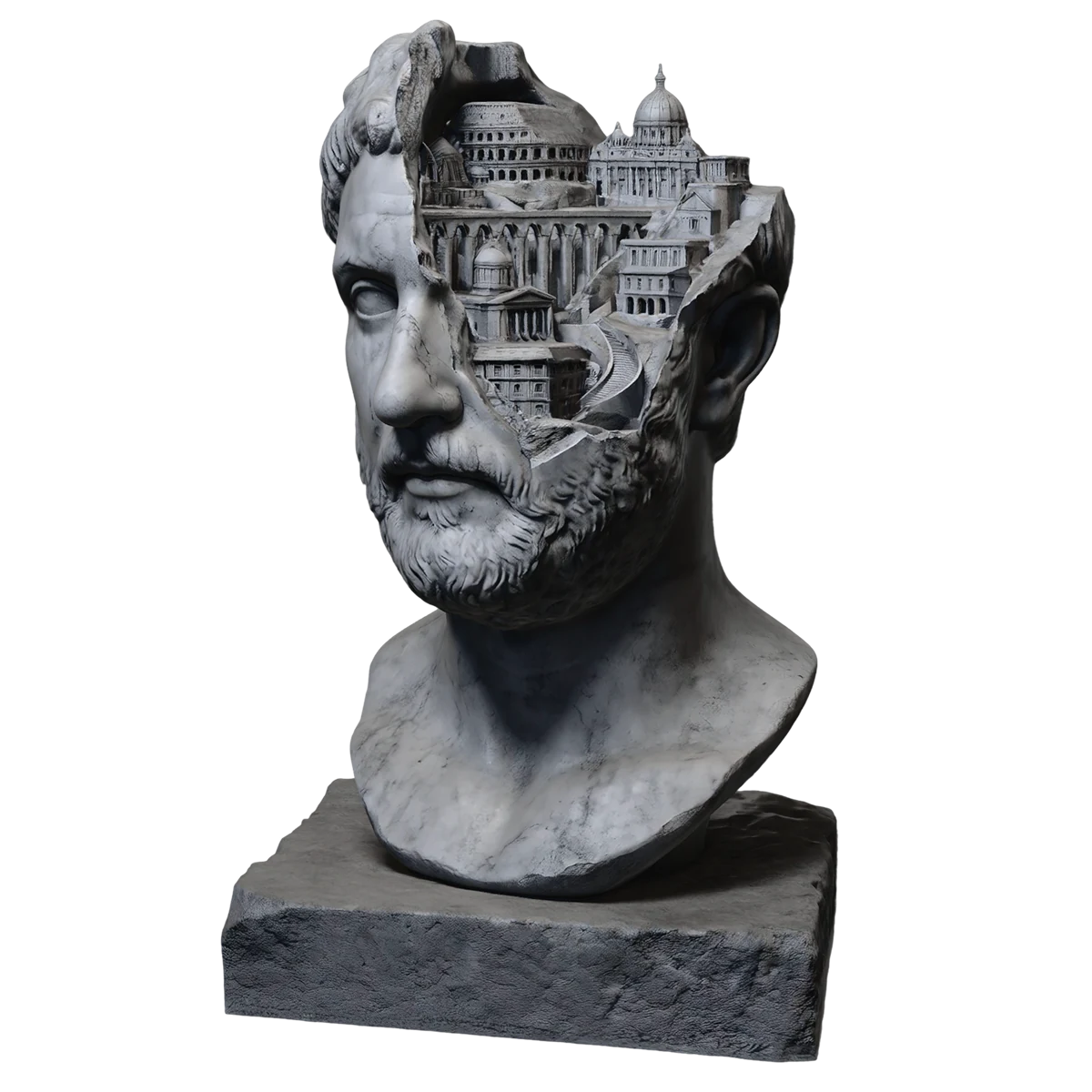
MESHY PRODUCT EXAMPLEVisual courtesy of Meshy
From an initial concept to a model you can inspect.
GAME PROPSCHARACTER IDEAS3D PRINTINGVISUAL EXPLORATION
01 / CHOOSE YOUR STARTING POINT
Not every idea starts the same way.
Meshy offers different ways to begin. Pick the input that best communicates the shape you have in mind, then inspect the generated model rather than treating the first result as final.
01 ↗
START WITH WORDS
Text to 3D
Describe a subject, its shape, its materials, and its style. Text-based generation is useful when you want to explore a concept before drawing it.
EXAMPLE PROMPT
“A stylized woodland fox figurine, seated, with a broad base and a carved-wood appearance.”
Explore a model’s appearance with AI-assisted textures. Review the materials under different lighting and check how they behave in your intended software.
Feature illustrations are Meshy product examples. Prompt and material examples are illustrative, not promises of a particular output.
02 / A PRACTICAL FIRST SESSION
Give your first model a clear brief.
Start small enough that you can tell whether the output works. Here is a repeatable approach for a first experiment.
1
Choose one subject
Begin with one prop or character. Decide whether you need a visual concept, an asset for a game, or a model for printing. Those goals call for different checks.
2
Make the input specific
For text, describe the silhouette, proportions, and material. For images, use a clean reference of a subject you have the right to use.
3
Inspect and iterate
Rotate the model. Look at the back, underside, thin parts, and surface transitions. Change one important detail at a time so you can compare results.
4
Export for a real destination
Check the available formats, plan permissions, and your target software. Test the exported file in that software before making it part of a larger project.
03 / MATCH THE MODEL TO THE JOB
A useful starting point. A workflow of your own.
AI-generated models can help you explore more ideas. What happens after generation depends on how and where you plan to use the file.
◈
Games & interactive scenes
Explore props and character concepts. Before using an asset, check topology, polygon count, textures, scale, and performance in your engine.
▧
3D printing experiments
Work toward a physical model, then inspect wall thickness, overhangs, connected parts, and the slicer preview. Printing may require additional cleanup.
✳
Visual concepts & prototypes
Use a model to discuss shape and direction. Treat generated geometry as a visual starting point, not an engineering specification or dimensionally verified CAD file.
About file formats
Meshy lists formats including GLB, OBJ, FBX, STL, and others. Availability depends on the workflow and current product options. Check textures, dimensions, and licensing before downloading for your intended use.
BEFORE YOU COMMIT
Know what you’re signing up for.
Use the current information on Meshy when choosing a plan. This guide does not set prices, credit allowances, or subscription terms.
Privacy & uploaded referencesCheck project visibility and use only images you are authorized to upload.
Billing & renewalConfirm the price, billing period, renewal terms, and cancellation process before paying.
A FEW THINGS TO KNOW
Questions before your first model?
Practical answers for getting started with Meshy AI.
What is Meshy AI?
Meshy is an AI-assisted 3D creation platform with tools for generating models from text or images, applying textures, and working with assets for different 3D workflows. Review and refine the output for your project.
Should I start with text or an image?
Use text when you want to explore a concept without preparing artwork. Use an image when you already have a visual reference for the subject. In either case, a clear brief makes the result easier to evaluate.
Can I use a generated model in a game or a 3D print?
These are workflows Meshy supports, but generation alone does not confirm suitability. Check the geometry, textures, file format, scale, and applicable usage rights. For printing, also check the model in your slicer.
Is Meshy free to try?
Meshy advertises a free way to get started. Current limits, export options, and paid features can change. Check the details on Meshy before signing up or purchasing a plan.
Is this the official Meshy website?
No. Meshyai.tech is an independent affiliate guide. Meshy operates its own platform at meshy.ai. We may earn a commission if you subscribe through the links on this page.
Where do the buttons on this guide lead?
Buttons marked “Try Meshy” or “Explore Meshy” open Meshy through our affiliate link. Your account, uploads, subscription, and model generation are handled there. This guide does not collect your Meshy login details.
✳
ONE IDEA. A NEW DIMENSION.
Give that idea some shape.
Start with a subject you can describe. Explore the possibilities on Meshy.
Try Meshy AI ↗You will continue to Meshy through an affiliate link.